
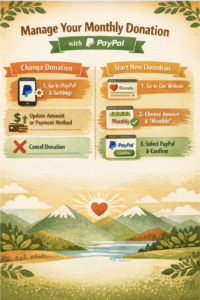
 All monthly donations are managed through PayPal. You can update your payment method, cancel a monthly donation, or start a new monthly donation anytime.
A) How to Change Your Monthly Donation
1) Update your payment method (card/bank)
- Open the PayPal app (or log in on your computer).
- Go to Settings (look for the gear icon).
- Tap/click Payments.
- Select Automatic payments (sometimes called Manage automatic payments).
- Find Awakening Together or The Foundation for the Holy Spirit.
- Choose Update to change the payment method PayPal uses.
2) Change the monthly amount
PayPal usually does not let you edit the amount on an existing monthly donation. The easiest way is:
- Cancel the current monthly donation (steps below), then
- Create a new monthly donation for the new amount (see section B).
3) Cancel a monthly donation
- Log in to PayPal.
- Go to Settings (gear icon) → Payments → Automatic payments.
- Select Awakening Together.
- Choose Cancel (or Remove PayPal as payment method / similar wording).
B) How to Create a New Monthly Donation
- Go to our Donate page on the Awakening Together website.
- Enter the donation amount you’d like to give.
- Select Monthly (or “Make this a monthly donation”).
- Choose PayPal as the payment option.
- Log in to PayPal and confirm the donation.
- You should receive a PayPal confirmation email/receipt—this means you’re all set.
Tip: If you’re changing your monthly amount, be sure you’ve canceled the old monthly donation first, so you don’t accidentally have two monthly donations running.
If you get stuck, we can help
Connect with us HERE and include:
- Your name
- The email you use for PayPal
- What you’re trying to do (change amount, start new monthly, update card, etc.)
Thank you for your support — monthly giving helps sustain Awakening Together in a steady way. 💚